



What to know
- This webpage provides information to help you print the tables from CDC's Reported Tuberculosis in the United States, 2024.
- You may need to make adjustments to your print settings in your web browser so the table content can fit on a single page.

Print settings in Google Chrome browser
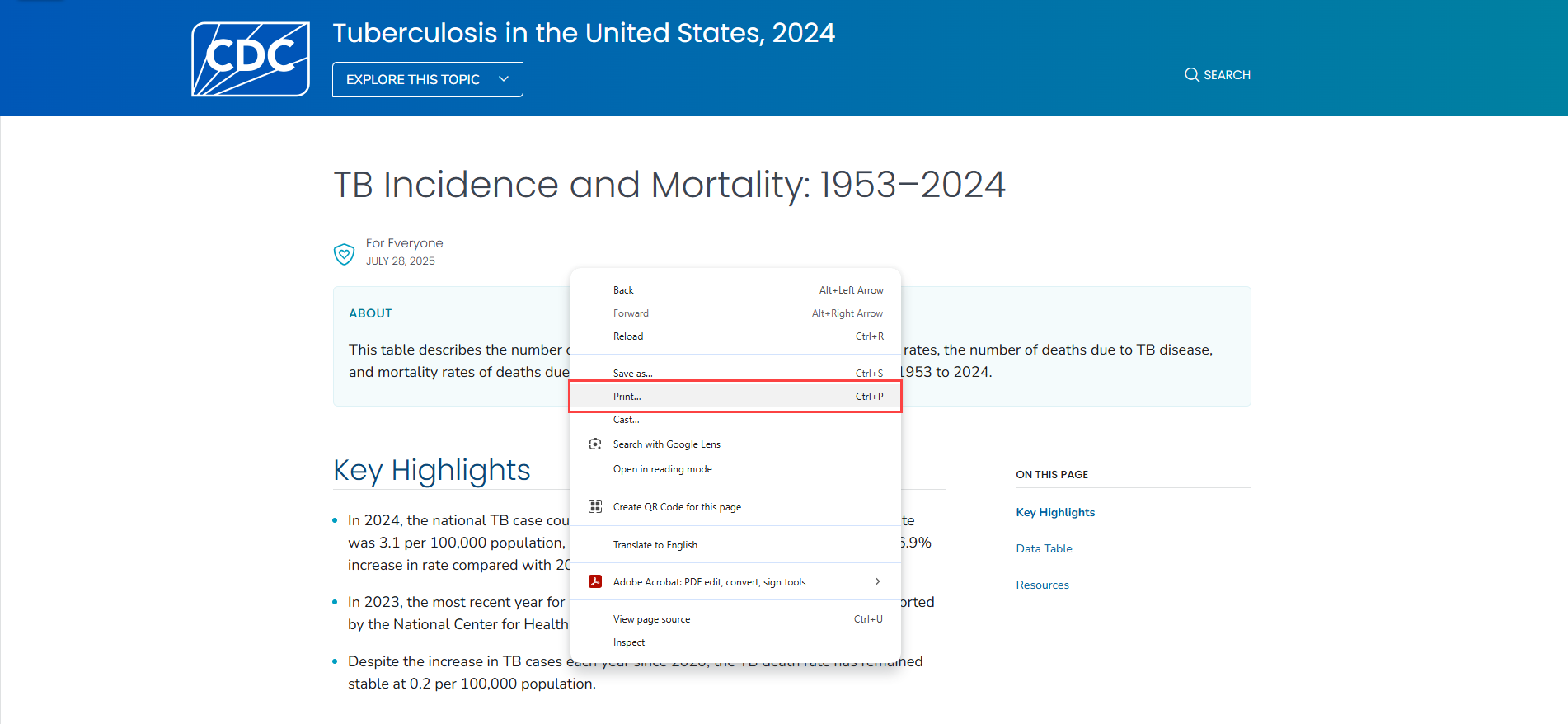
Google Chrome can print a page with the default settings or you can change them yourself to suit any specific need. You can preview changes on the right side of the "Print Dialog Box" before selecting "Print".
Access the Print screen.
Adjust the margins
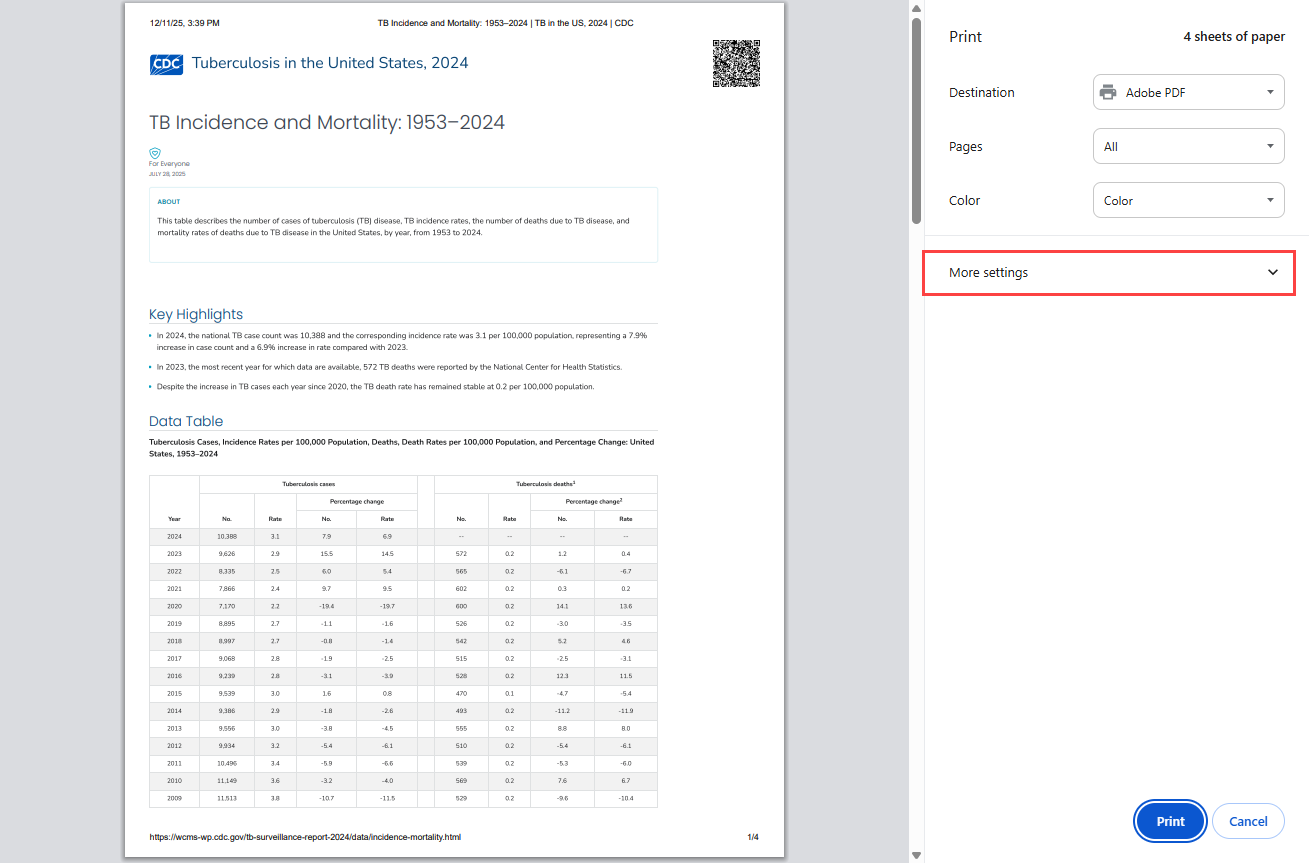
Click More settings for custom scale and margins.
Set the page layout
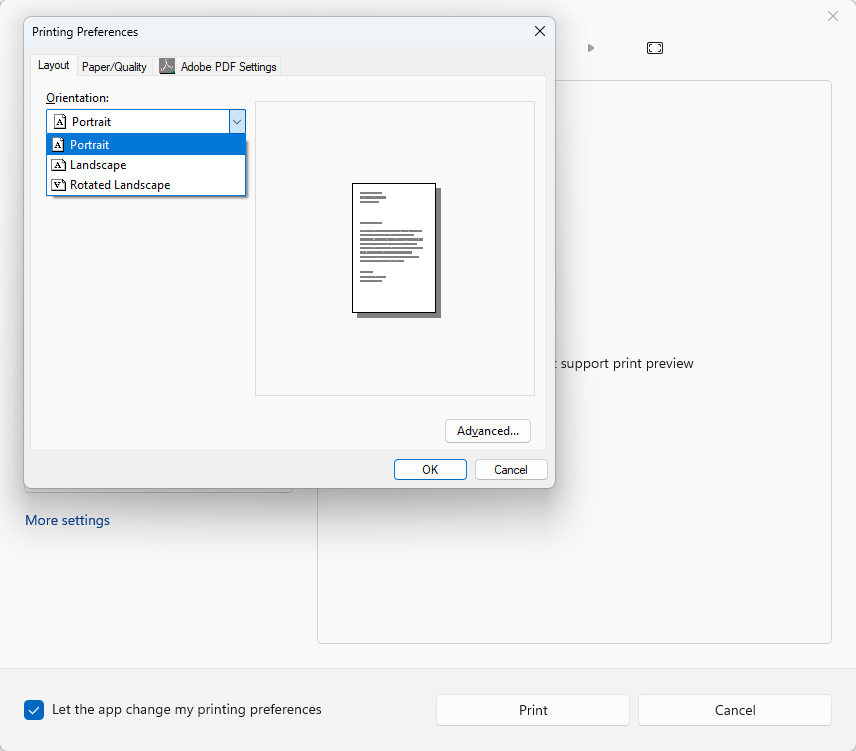
Click Print using system dialog to adjust the page orientation to your preference. When the print window opens, select Preferences. Then in the Printing Preferences window, select the Layout tab to choose your page layout preference (e.g., portrait or landscape).
Select print
Click OK and then click Print.
Print settings in Microsoft Edge browser
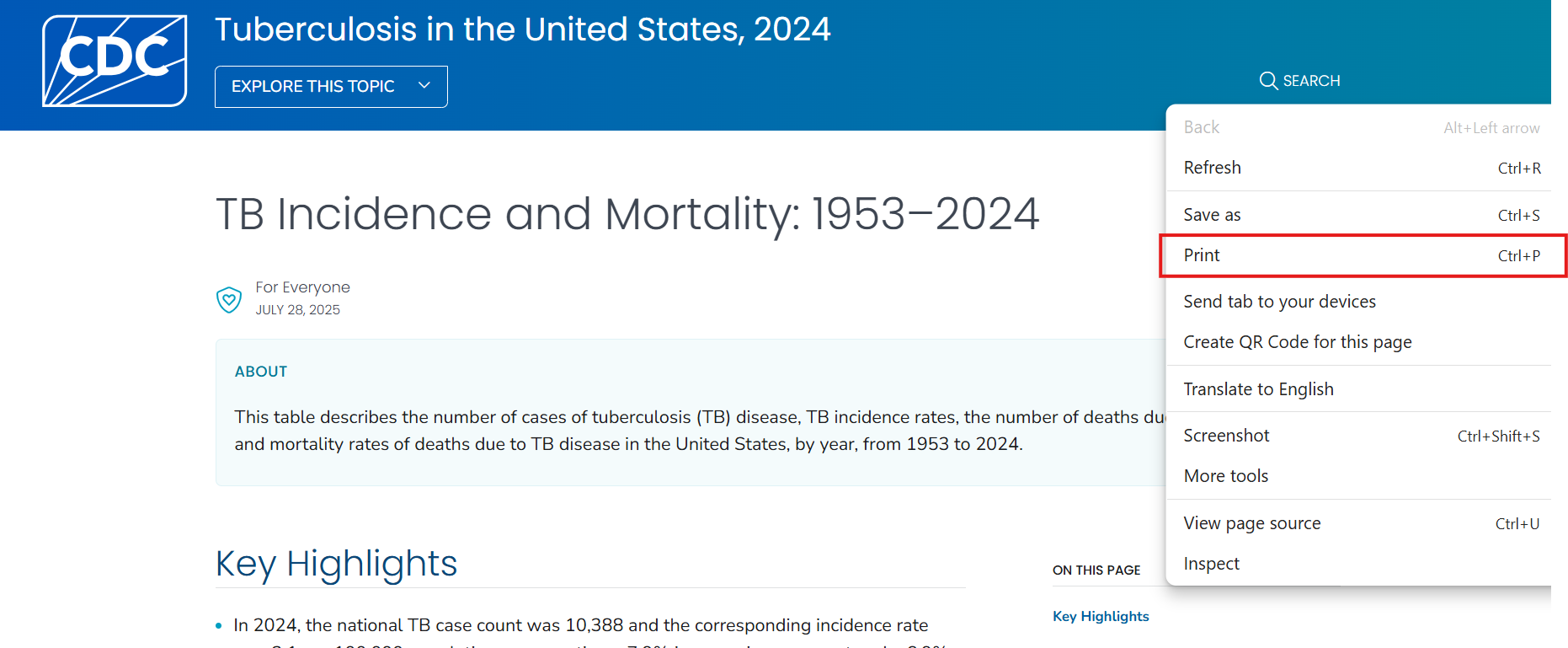
Access the Print screen
Right-click and select Print from the menu or press ctrl + P on the keyboard.
Adjust the margins
Review the preview of the printed page in the new pop-up window.
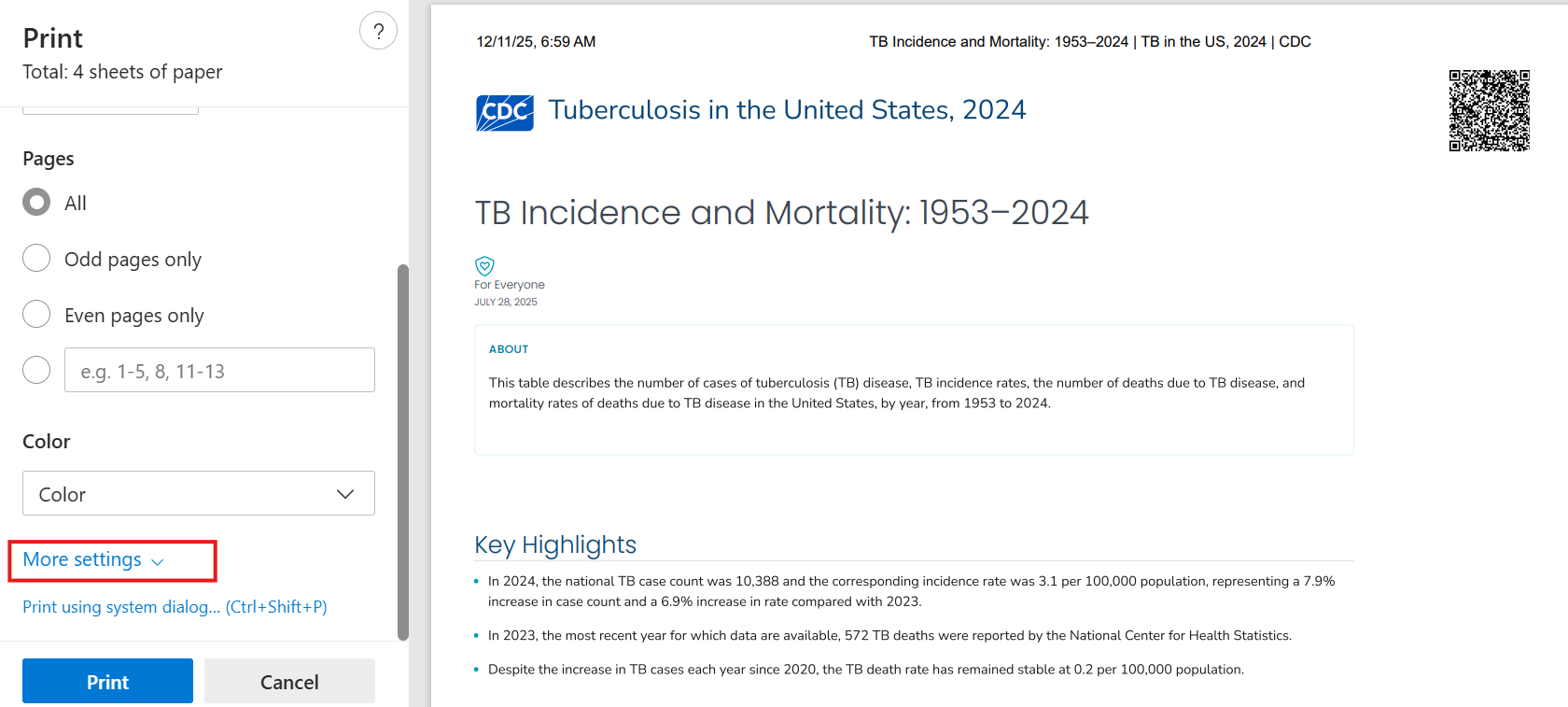
Select More Settings in the left menu to drop down additional options.
Set the printing scale
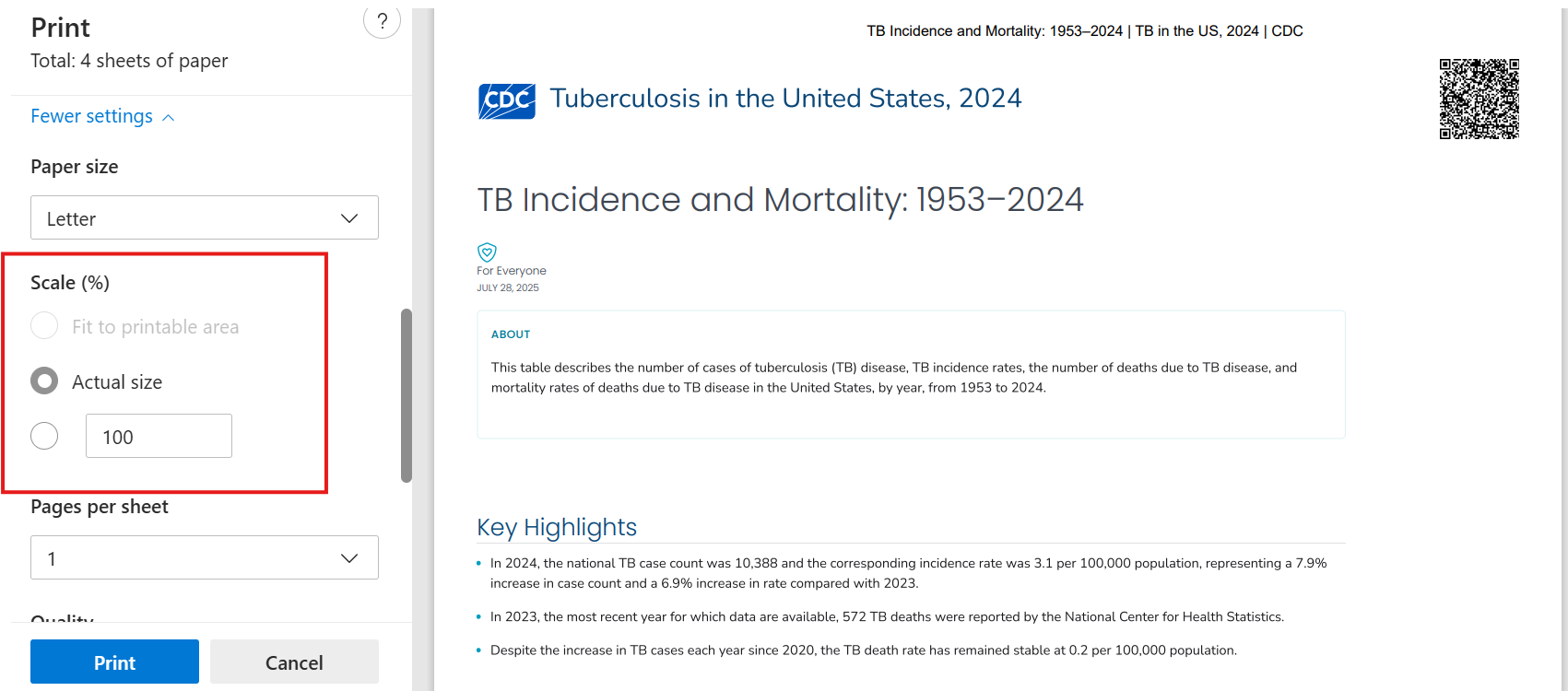
Set "Scale" to "Fit to printable area" or use the custom scaling to adjust the size to your preference.
Set the page layout
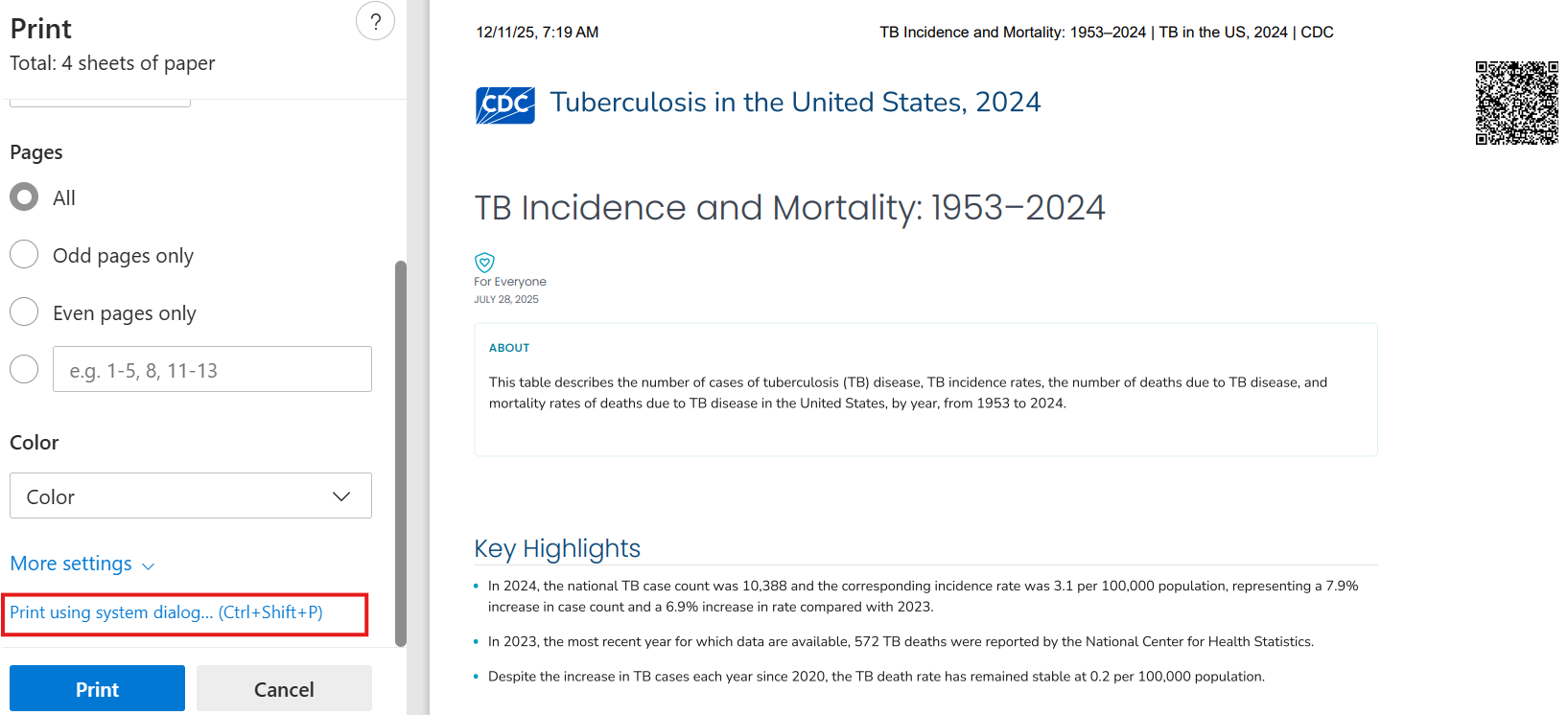
Click Print using system dialog.
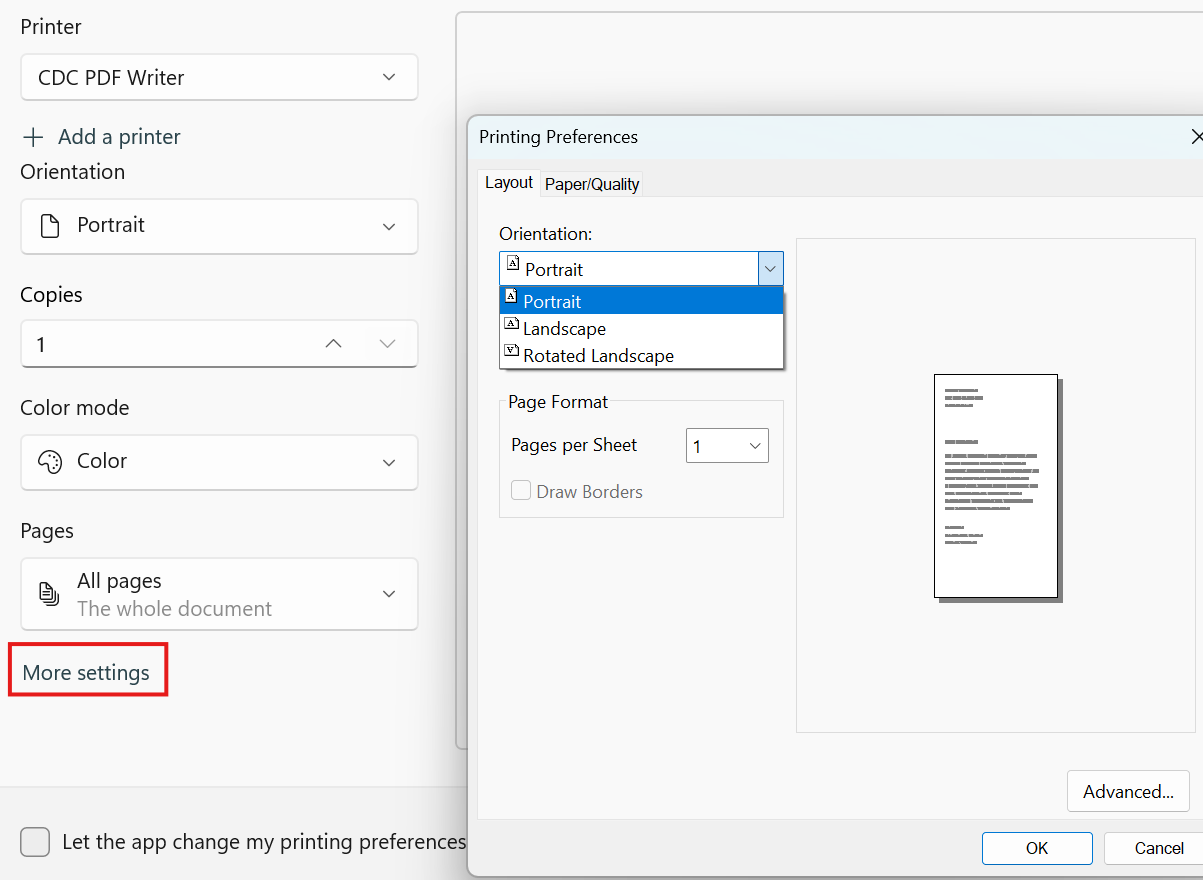
Click Preferences (or More settings). Then in the Printing Preferences window, select the Layout tab to choose your page layout preference (e.g., portrait or landscape).
Select print
Click OK and then click Print.